Live TV • Channel 5

How to Access Channel 5

Set up Free VPN for Channel 5, choose a suitable location, and troubleshoot common network or IP-location errors while travelling.

Channel 5 channels, licences, and account rules can vary by country. Check official availability first, then use this guide to choose a suitable VPN location while travelling and troubleshoot location errors.


Step 1: Download Free VPN
STEP 1

Download Free VPN

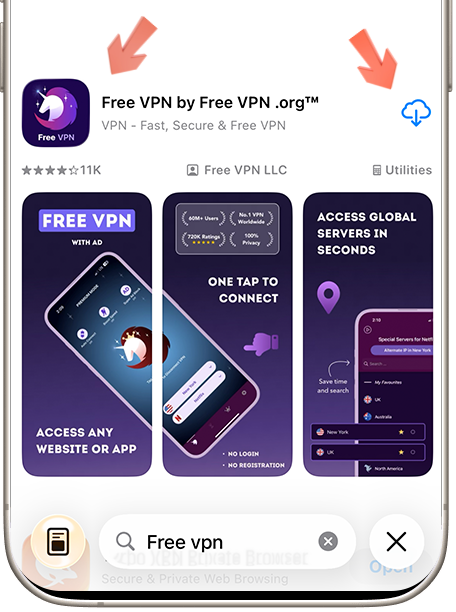
Download Free VPN from the official store for your device. Review the current store listing for platform requirements, plan details, and privacy information before installing.

Available on Android, iOS & macOS
No registration required
100% free forever
Step 2: Open Service Selector
STEP 2

Open Service Selector

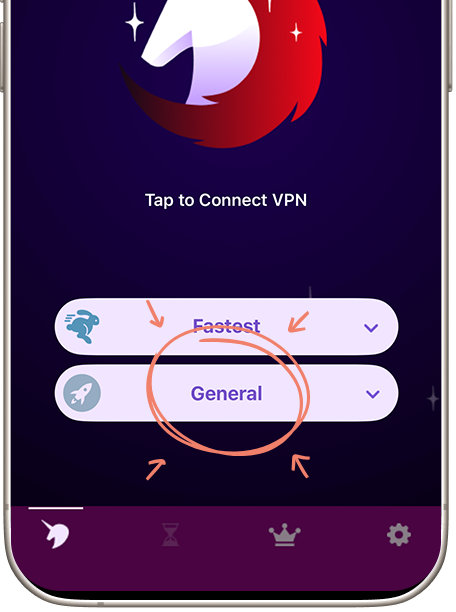
Launch Free VPN and tap "Services" to view the presets currently available in your app version. Service availability and supported locations can change over time.

Easy-to-find Services button
Organized by categories
Search functionality included
Step 3: Search for Channel 5 and Connect
STEP 3

Search for Channel 5

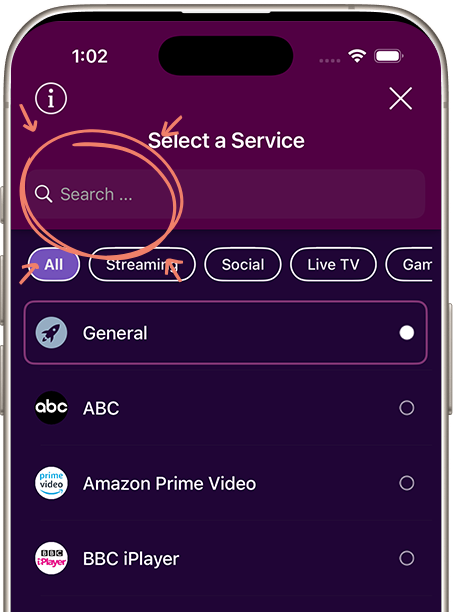
In the services list, search for "Channel 5" or scroll through the Live TV category. Review the locations shown, choose one appropriate for your travel or troubleshooting need, and connect before reopening Channel 5.

Shows available locations for Channel 5
One-tap connection
Clear connection status before opening Channel 5
WHY FREE VPN

Using a VPN with Channel 5

Optimized Servers

Choose a nearby suitable location first. Shorter network routes often perform better, but speed varies by congestion, device, and internet provider.

Complete Privacy

A VPN encrypts traffic on the local network and changes the public IP address. It does not make an account or activity on Channel 5 anonymous.

Smart Region Selection

Use the location list to test a legitimate IP-location mismatch. Confirm that Channel 5 is officially available for your account and selected country.

Unlimited Access

If Channel 5 reports a proxy or playback error, reconnect, try another eligible nearby location, clear stale app data, and check the provider's status.

FREQUENTLY ASKED

Questions about Channel 5

No. Availability depends on Channel 5, your account, country, subscription, and current VPN-detection rules. Free VPN can protect the connection and help diagnose a legitimate IP-location error, but it cannot guarantee access.

Use a nearby location where Channel 5 and the content or feature you need are officially available. Check the provider's current availability and account rules before connecting.

No. A VPN encrypts traffic between your device and the VPN server and changes your public IP address. Channel 5 can still associate activity with your account, device, cookies, or other identifiers.

Confirm that your account is eligible in the selected country, reconnect, try another nearby eligible location, restart the app or browser, and clear stale location data. If the error continues, check Channel 5 support and terms.

Ready to Access Channel 5?

Protect your connection, choose a suitable location, and follow Channel 5 availability, subscription, and account rules.