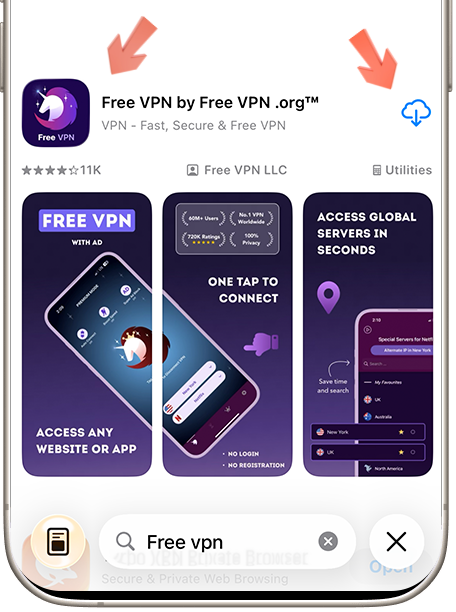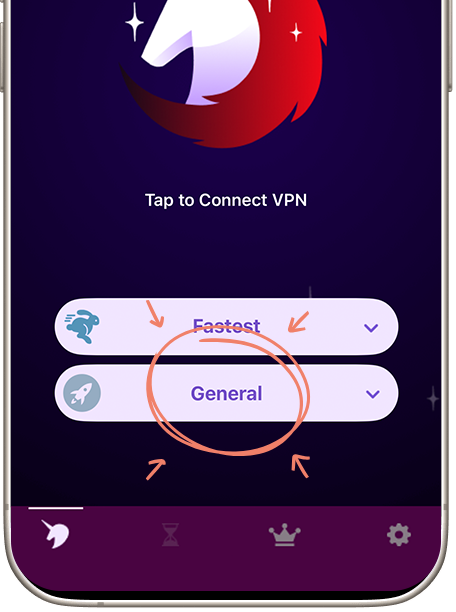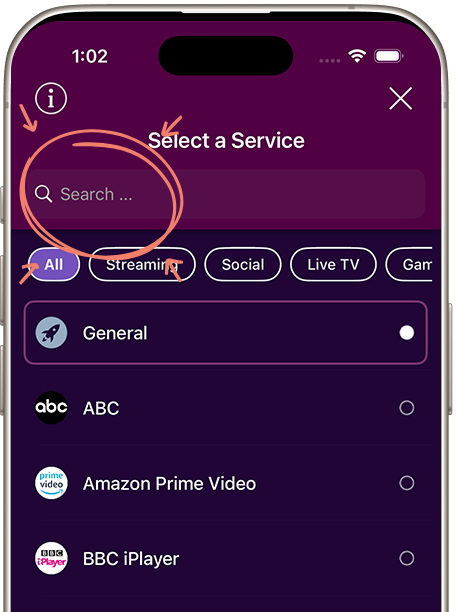
Looking to watch YuppTV? Get Free VPN, find the service in the app, and follow the connection steps. Contact us if you need setup help.
Open Services in Free VPN and look for YuppTV or Yupp TV, then connect.

Download Free VPN from the official store for your device. Review the current store listing for platform requirements, plan details, and privacy information before installing.
Launch Free VPN and tap "Services" to view the presets currently available in your app version. Service availability and supported locations can change over time.
Open Services in Free VPN and look for YuppTV or Yupp TV, then connect. Once connected, open YuppTV and sign in with your usual account if needed.

Choose a nearby suitable location first. Shorter network routes often perform better, but speed varies by congestion, device, and internet provider.
A VPN encrypts traffic on the local network and changes the public IP address. It does not make an account or activity on YuppTV anonymous.
Use the location list to test a legitimate IP-location mismatch. Confirm that YuppTV is officially available for your account and selected country.
If you get a location, playback or connection message, reconnect in Free VPN and reopen the service. Our team checks service connections. If it persists, send us the exact message, your device and the selected service. Contact Free VPN support.
Open Services in Free VPN and look for YuppTV or Yupp TV, then connect. Once connected, open YuppTV and sign in with your usual account if needed.

Compare the exact channel and language package in your account with the channel list for your location. A missing channel and a channel that fails to play are different issues. Start with YuppTV support if the account lists the wrong package.
If you get a location, playback or connection message, reconnect in Free VPN and reopen the service. Our team checks service connections. If it persists, send us the exact message, your device and the selected service.