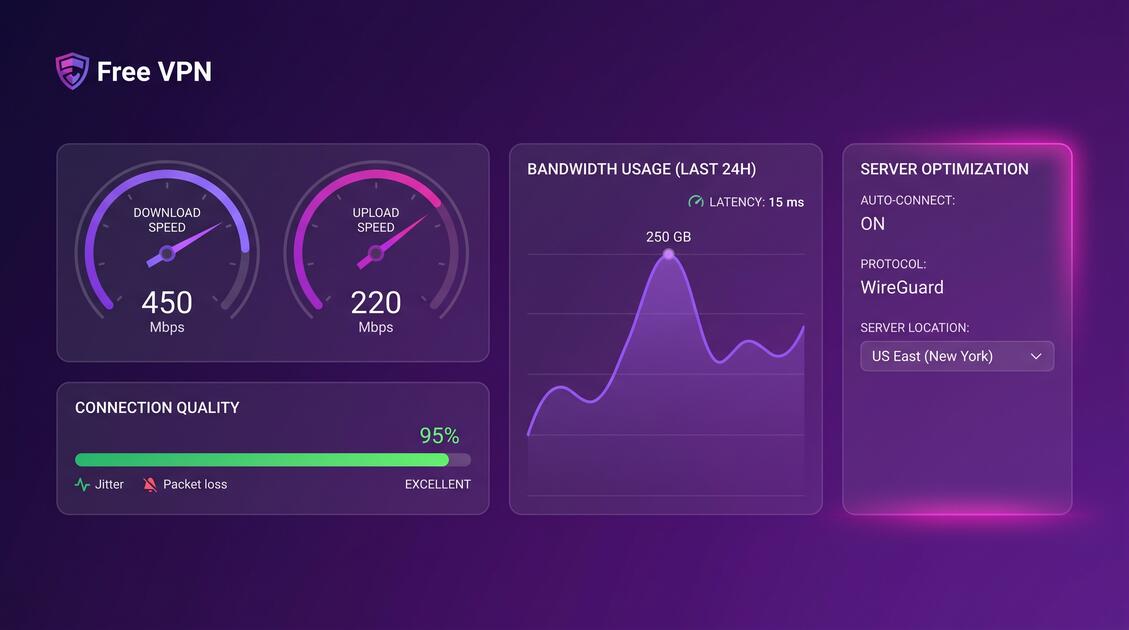
A slow VPN can destroy your user experience, but the right optimization techniques can boost your connection speed dramatically. Whether you're streaming, gaming, or working remotely, this comprehensive guide will show you how to maximize VPN performance and maintain blazing-fast speeds while staying protected.
Why Does VPN Affect Internet Speed?
Before we optimize, let's understand why VPN connections sometimes feel slower than your regular internet.
VPN encryption creates overhead—data must be encrypted before leaving your device, travel through the VPN tunnel to a remote server, then be decrypted on the other end. This process adds latency (delay) and can reduce available bandwidth. However, the impact is typically minimal on modern connections.
The real culprit: Server distance and network congestion. If you're in New York and your VPN server is in Australia, data must travel across the entire planet. That physical distance creates latency that no optimization can fully eliminate.
Typical Speed Impact
A well-optimized VPN on a 100 Mbps connection should maintain 70-95 Mbps depending on server distance and encryption protocol. Free VPN's advanced routing can often exceed these benchmarks.
Choose the Right Server Location
Server selection is the single most important factor in VPN performance. This is where you'll see the biggest speed improvements.
Geographic Proximity Matters Most
The golden rule: choose the server closest to your physical location. A server 500 miles away will outperform one 3,000 miles away every single time.
- Same city or region: 5-15ms latency (ideal)
- Same country: 15-50ms latency (good)
- Neighboring country: 50-100ms latency (acceptable)
- Continent away: 100-250ms latency (noticeable slowdown)
- Opposite hemisphere: 250+ ms latency (significant impact)
Server Load and Congestion
Even a nearby server won't perform well if it's overloaded. Free VPN automatically distributes traffic across lightly-used servers and shows real-time server load. Choose servers with green "light load" indicators when available.
Pro Tip: Server Rotation
If your speeds drop throughout the day, try rotating between 2-3 nearby servers every few hours. This prevents any single server from becoming overwhelmed and maintains consistent performance.
Select the Fastest VPN Protocol
VPN protocols are the rules your connection follows. Different protocols offer different speed-to-security tradeoffs.
WireGuard: The Speed King
WireGuard is the newest protocol and consistently delivers the fastest speeds. It uses modern encryption algorithms and has minimal overhead, making it ideal for:
- Streaming 4K video
- Gaming with competitive ping requirements
- Large file transfers
- Mobile devices where battery life matters
OpenVPN: The Balanced Choice
OpenVPN is older and slightly slower than WireGuard, but offers better compatibility with older devices and firewalls. Choose OpenVPN if:
- You need maximum compatibility
- Your network environment is restrictive
- You're on older hardware
IKEv2: The Mobile Specialist
IKEv2 excels at handling network switching (moving between WiFi and cellular). It's faster than OpenVPN but slower than WireGuard. Perfect for travelers and mobile users.
Avoid Legacy Protocols
PPTP and L2TP are deprecated and should never be used. They're slow, insecure, and offer no advantages. Modern phones and computers don't support them anyway.
Optimize Your VPN Settings
After choosing your protocol and server, fine-tune these settings for maximum performance.
Disable Split Tunneling (When Safe)
Split tunneling routes some traffic through the VPN and some directly to your ISP. This can improve speed but compromises privacy. Only use it for performance-critical apps you trust completely:
- Video streaming services (Netflix, Disney+) where geoblocking might be an issue
- Gaming where low latency is critical
For banking, email, and sensitive work, keep split tunneling disabled to maintain full encryption.
Enable Kill Switch But Understand Tradeoffs
Kill switch immediately blocks internet if your VPN drops, preventing data leaks. The tiny performance hit is worth the security—enable it unless you're doing time-critical operations like live gaming tournaments.
Optimize DNS Settings
Your DNS (domain name system) translates website names to IP addresses. A slow DNS adds noticeable delays. Free VPN uses optimized global DNS that's typically faster than your ISP's default. Advanced users can test Cloudflare's 1.1.1.1 or Quad9 for potentially faster resolution.
Manage Bandwidth & Quality
Not all bandwidth is equal. Here's how to maximize usable speed.
Understand Your Connection
Before blaming your VPN, know your baseline speed. Visit Speedtest.net to measure:
- Your actual ISP-provided speeds (without VPN)
- Your speed with VPN enabled
- The difference helps identify where slowdowns occur
Reduce Quality for Speed
If you're streaming, you can trade video quality for speed:
- 4K streams demand 15-25 Mbps
- 1080p HD needs 5-8 Mbps
- 720p HD requires 3-4 Mbps
- 480p standard definition uses 1-2 Mbps
Temporarily reducing to 720p on Netflix or YouTube can dramatically improve your experience on congested networks.
Monitor Data Usage
Some networks throttle after reaching data caps. Check if your ISP is limiting speeds by:
- Testing speed with VPN disconnected
- Testing speed with VPN to a very close server
- If both are slow, suspect ISP throttling rather than VPN issues
Advanced Performance Techniques
For power users seeking every possible speed optimization:
Use Free VPN's Accelerate Feature
Free VPN's patented Accelerate feature uses intelligent routing and data compression to boost speeds up to 10x in real-world conditions. This works by:
- Intelligently routing traffic through faster network paths
- Compressing data without sacrificing quality
- Optimizing packet transmission patterns
- Balancing load across multiple servers
Enable this in Free VPN settings for immediate performance improvements on streaming and downloads.
Adjust MTU (Maximum Transmission Unit)
Advanced networks users can optimize MTU size (the maximum data packet size). Default is usually fine, but testing 1300-1400 byte MTU with your VPN provider might improve throughput on some connections.
Enable UDP Instead of TCP
UDP is faster but less reliable; TCP is slower but guarantees delivery. For activities where speed matters more than perfect reliability (streaming, gaming), UDP performs better. For activities requiring perfection (file transfers, financial transactions), use TCP.
Speed Issues: Diagnosis & Fixes
Still experiencing slowdowns? Follow this systematic troubleshooting guide.
Step 1: Establish Your Baseline
- Run a speed test WITHOUT VPN
- Note your ISP's promised speeds from your service agreement
- Compare actual vs promised speeds
Step 2: Test With VPN Enabled
- Connect to your nearest VPN server
- Run another speed test
- Most VPNs should maintain 80%+ of your base speed
Step 3: Try Different Servers
- Test 2-3 different nearby servers
- Test a server in a different country
- If distant servers are faster, suspect ISP throttling of VPN traffic (some ISPs deliberately slow down VPN)
Step 4: Change Protocols
- Try switching from OpenVPN to WireGuard
- Try UDP instead of TCP
- Protocol changes often reveal network-specific issues
Step 5: Check for ISP Throttling
- Connect to a distant VPN server and test speed
- If distant servers are surprisingly fast, your ISP might be specifically throttling local VPN traffic
- This is illegal in some regions—contact your ISP or file complaints with regulators
Emergency Speed Boost
If you need maximum speed immediately: enable Accelerate, switch to WireGuard UDP, select your nearest server, and disable split tunneling. This combination typically delivers maximum achievable speeds.
Key Takeaways
- VPN encryption adds minimal latency (typically 10-30ms) but server distance has the biggest impact on speed
- WireGuard protocol offers the fastest speeds with modern encryption; OpenVPN provides better compatibility
- Select servers geographically close to your location for fastest connections and lower latency
- Disable split tunneling and firewall-heavy settings only when necessary to optimize bandwidth
- Regular speed tests and server rotation help maintain consistent performance throughout the day
- Free VPN's Accelerate feature uses intelligent routing to boost speeds up to 10x in real-world conditions
Maximize Your VPN Performance Today
VPN performance optimization isn't complicated—just follow the fundamentals: choose nearby servers, select WireGuard protocol, and enable Accelerate. These three changes alone will solve most speed issues.
Remember, the goal isn't to make your VPN faster than your ISP connection—it's to get as close as possible while maintaining your privacy and security. With Free VPN's intelligent optimizations and your careful server selection, you can enjoy blazing-fast speeds without sacrificing protection.
Start with the basic optimizations today. Most users see immediate improvements. If you hit advanced bottlenecks, use our troubleshooting guide to diagnose the exact issue and apply targeted fixes.