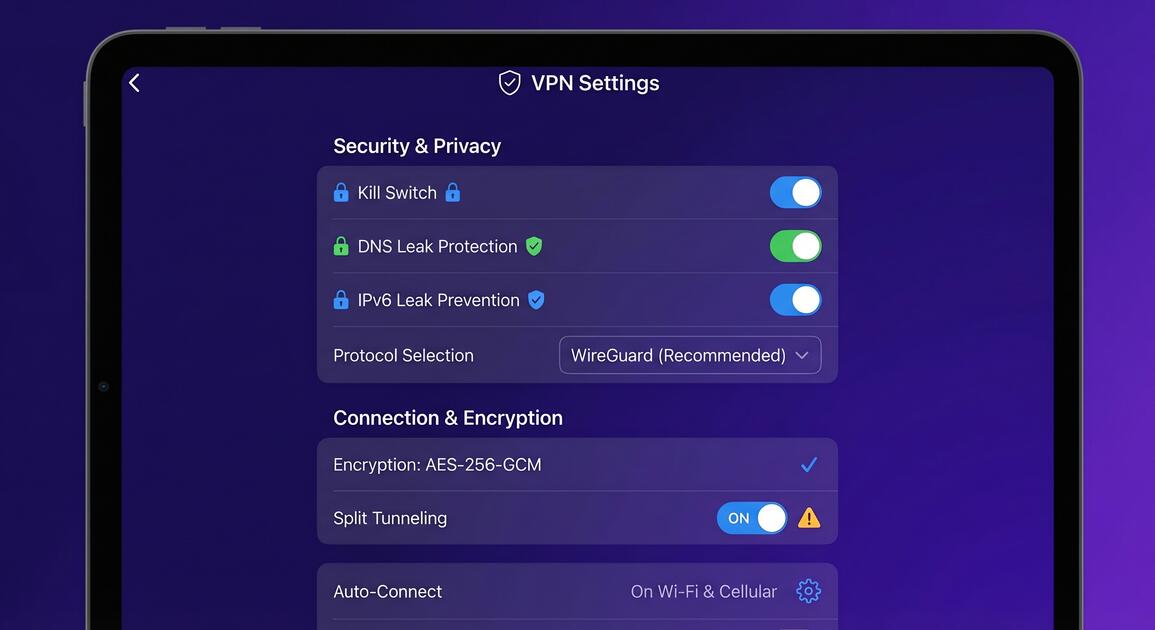
Most people install a VPN and assume they're fully protected—but the default settings might not be optimized for maximum privacy. Every VPN has dozens of settings buried in menus and preferences, each controlling how your connection works and what data remains protected. Understanding these settings transforms you from a passive user into an informed privacy advocate who can configure your VPN exactly the way you need it.
Why VPN Settings Matter More Than You Think
A VPN with wrong settings is like buying a lock but leaving the door wide open. Even the most secure VPN protocol can fail if your DNS requests bypass the tunnel or if your IPv6 address leaks your real location. Privacy leaks happen silently—no warnings, no alerts—and many users never discover them because they don't know what to look for.
The difference between a "barely protected" VPN and a "fortress protected" VPN often comes down to five to ten critical settings. This guide walks you through each one, explaining not just which settings to enable, but why each setting matters for your specific privacy needs.
Did You Know?
DNS leaks are the most common VPN configuration mistake. Your DNS queries can leak your real IP address even when your VPN is active, allowing your ISP to see every website you visit. This happens when VPN settings aren't configured to route all DNS through the encrypted tunnel.
Kill Switch: Your Emergency Privacy Guard
The kill switch (sometimes called "disconnect protection") is your most important privacy safeguard. Here's what it does: if your VPN connection drops—even for a split second—your kill switch instantly blocks all internet access until the VPN reconnects. Without it, your real IP leaks the moment the connection fails.
How to configure it: Look for "Kill Switch" or "Disconnect Protection" in your VPN settings. Options typically include:
- Off: No protection if the VPN drops (not recommended)
- Full: All internet traffic stops if VPN disconnects (maximum security)
- Network-specific: Kill switch activates only on untrusted networks (practical for home/work)
Choose "Full" if privacy is your priority. Choose "Network-specific" if you need more flexibility at home but want strict protection on public WiFi.
Important
Kill Switch only protects you from accidental disconnects. If you intentionally disconnect the VPN to access local services (printers, home servers), your kill switch will also block internet access. Configure it to allow specific local applications if needed.
DNS Leak Protection: Stop Location Leaks
DNS (Domain Name System) is like the phone book of the internet—it translates website names into IP addresses. Here's the problem: even with a VPN, your DNS requests can leak to your ISP's servers, revealing every website you visit.
How DNS leaks happen: Your operating system is configured to use your ISP's DNS servers by default. If your VPN doesn't specifically route DNS queries through its encrypted tunnel, these requests bypass the VPN entirely and hit your ISP's server directly.
How to configure DNS protection:
- Enable "Custom DNS": Point to a privacy-focused DNS service (Cloudflare's 1.1.1.1, Quad9, or your VPN provider's DNS)
- Use "VPN DNS Only": Forces all DNS queries through the VPN tunnel (recommended)
- Test for leaks: Visit dnsleaktest.com while connected to your VPN to verify no leaks
Most modern VPNs handle this automatically, but it's worth verifying in settings.
IPv6 Leak Prevention: Close Hidden Tunnels
IPv6 is the newer internet protocol designed to replace IPv4. Here's the catch: most VPNs are optimized for IPv4, and if your device supports IPv6, it might use an unprotected IPv6 connection while your VPN only protects IPv4 traffic.
The risk: Your IPv6 address can leak your real location even while your IPv4 traffic is protected by the VPN.
How to configure it: Look for IPv6 settings in your VPN app:
- Disable IPv6: Simplest option—turns off IPv6 entirely on the VPN
- IPv6 Leak Protection: Routes IPv6 through the VPN tunnel like IPv4
- Test: Visit ipv6leaktest.com to verify no IPv6 leaks
Disabling IPv6 is the most common approach since most websites work fine over IPv4 alone.
Choosing the Right VPN Protocol
VPN protocols are the languages your device uses to communicate through the VPN tunnel. Each protocol offers different trade-offs between speed, security, and compatibility.
WireGuard: The modern choice. Ultra-fast, modern code (40,000 lines vs. OpenVPN's 400,000), excellent performance on mobile devices. Use this if available.
OpenVPN: The reliable standard. Older but battle-tested, works everywhere, slightly slower than WireGuard. Use this if you need maximum compatibility.
IKEv2/IPSec: Excellent for mobile, reliable reconnection when switching networks. Good for travelers and mobile users.
L2TP/IPSec: Outdated. Slower than modern alternatives. Avoid unless you have specific compatibility needs.
Pro Tip
Test multiple protocols on your device to find the best balance. WireGuard typically offers the best combination of speed and security. OpenVPN provides better compatibility. Time a few websites with each protocol to see which feels fastest for your needs.
Encryption Strength Settings: Balancing Security & Speed
Encryption strength determines how difficult it would be for an attacker to break your encrypted connection. Stronger encryption = harder to break = slower performance (slightly).
AES-256: Military-grade, 256-bit encryption. The standard security choice. Only use if you're concerned about government-level surveillance. Tiny performance impact.
AES-128: Still extremely secure, 128-bit encryption. Equally effective for everyday privacy. Marginally faster than AES-256 on some devices.
ChaCha20: Modern alternative, excellent for mobile devices and weaker hardware. Comparable security to AES-128 with better mobile performance.
Recommendation: Use AES-256 for maximum security (the performance difference is negligible). If you have an older device, try AES-128 or ChaCha20.
Split Tunneling: Smart Routing for Your Apps
Split tunneling lets specific apps send traffic outside the VPN while others route through it. It's powerful but risky—one misconfiguration can leak sensitive data.
When to use Split Tunneling: Only when you specifically need certain apps to use your real IP address (printing from a home printer, accessing local network resources).
How to configure it:
- Blacklist mode: Everything goes through VPN except apps you specify (safer)
- Whitelist mode: Only specified apps go through VPN; everything else uses real IP (riskier)
Best practice: Use blacklist mode and only exclude apps that absolutely need your real IP. Never exclude banking apps, email, or social media from the VPN.
Auto-Connect: Always Protected from Startup
Auto-connect ensures your VPN is active automatically when you start your device or connect to a network. Without it, you might spend minutes (or hours) unprotected without realizing it.
Configuration options:
- On system startup: VPN connects when your device boots
- On WiFi connect: VPN activates when you join a WiFi network
- On any network change: VPN auto-activates when switching from WiFi to cellular
- Specific networks: Activate only on public WiFi, not home WiFi
Recommendation: Enable auto-connect on startup and on all network changes. This ensures you're never unprotected by accident.
VPN Privacy Settings Best Practices
Now that you understand the major settings, here's how to optimize them for maximum privacy:
1. Create a "Maximum Security" configuration
Kill Switch: Full
DNS Protection: VPN DNS only
IPv6 Protection: Enabled
Protocol: WireGuard
Encryption: AES-256
Auto-Connect: On all network changes
2. Test your VPN regularly
Run DNS leak tests (dnsleaktest.com) and IPv6 leak tests (ipv6leaktest.com) monthly to verify settings haven't changed.
3. Review your settings quarterly
VPN providers update their apps regularly. Check your settings after major updates to ensure your preferences weren't reset.
4. Keep your VPN provider updated
Security improvements happen in app updates. Enable automatic updates or check for updates monthly.
Key Takeaways
- Kill Switch is essential—enable it to prevent data leaks if your VPN connection drops
- Always verify DNS leak protection to ensure your ISP can't see your browsing activity
- IPv6 leaks are a hidden threat; enable IPv6 leak prevention even on IPv4-only networks
- WireGuard offers the best speed-to-security balance; OpenVPN provides maximum compatibility
- AES-256 encryption is standard security; AES-128 is fast and equally secure for most users
- Split Tunneling routes specific apps outside VPN; only enable for apps you trust completely
- Auto-Connect ensures protection on every network; set it to activate on startup or specific networks
- Regular security audits—run DNS and IPv6 leak tests monthly to verify your VPN settings
Take Control of Your Privacy Settings Today
Most VPN users never touch advanced settings because they seem intimidating. But you now understand what each setting does and why it matters. You know which settings protect against different threats, how to test for leaks, and how to optimize your configuration for your specific privacy needs.
The best VPN is the one that's properly configured to your threat model. A military-grade encryption means nothing if DNS leaks expose your identity. A kill switch protects you only if it's enabled. Start with the "Maximum Security" configuration recommended above, test your setup, and adjust settings based on your specific needs.
Your privacy is worth the few minutes it takes to configure these settings correctly. The goal isn't paranoia—it's informed self-protection. With Free VPN and these settings optimized, you're taking control of your online privacy in 2026.