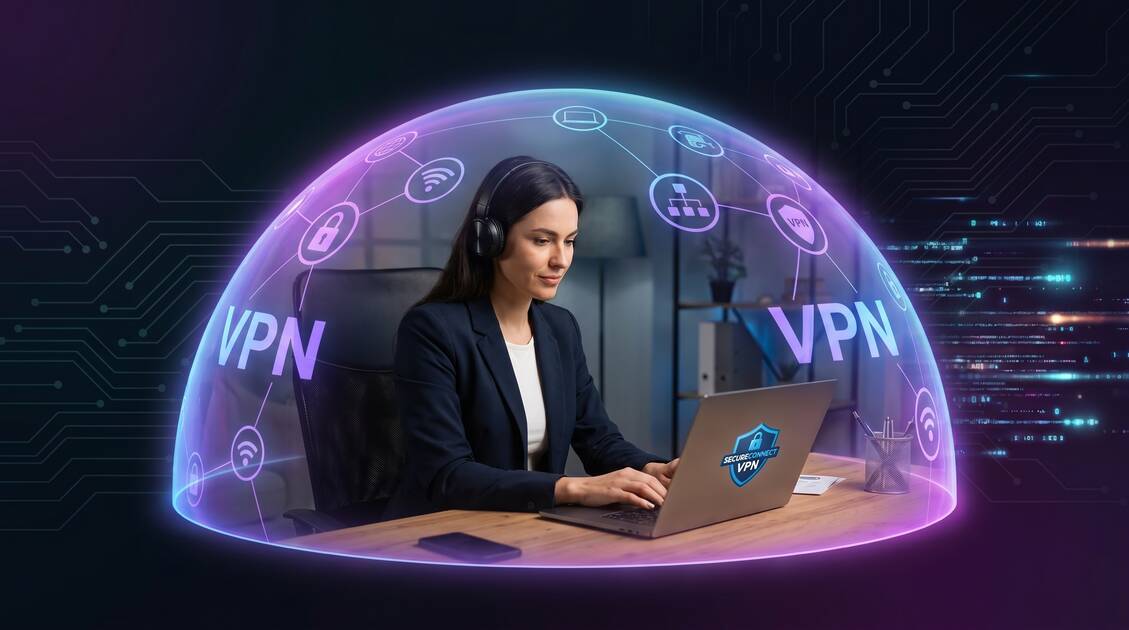
Remote work has transformed how we earn a living. No more commutes, no more open office distractions, and the freedom to work from anywhere. But this freedom comes with serious security risks that most remote workers don't fully understand. Your home office is likely far less secure than your company's physical office—and protecting corporate data is your legal and ethical responsibility. This complete guide shows you exactly how VPN protects remote workers, what security risks you face, and how to set up the right VPN solutions for your home office and mobile work.
Why Remote Workers Need VPN Protection
The transition to remote work happened fast. Many companies handed out laptops without fully addressing the security implications of employees working from home networks. Unlike corporate offices with firewalls, network monitoring, and physical security, your home WiFi is vulnerable to attack from anyone within range.
A VPN creates an encrypted tunnel between your devices and the internet. This means that even if someone hacks your home WiFi or intercepts your connection, they cannot see your data, passwords, or the websites you're visiting. For remote employees accessing corporate systems, email, and files, this protection is essential.
The stakes are high. A data breach involving corporate secrets, customer information, or intellectual property can result in fines, job loss, and legal liability. According to IBM's 2025 Data Breach Report, the average cost of a data breach is now over $4.8 million. For employees, a single compromised laptop could put your company at risk.
Data Breach Reality
Remote workers are 27% more likely to experience a security incident than office workers. Unsecured home networks are the top entry point for corporate attacks targeting employees.
7 Security Risks Your Home Office Faces
Understanding the specific threats to your home office is the first step in protecting yourself and your employer. Let's explore the top security risks remote workers encounter daily.
1. Unsecured Home WiFi Networks
Many people set up their home WiFi once and never change the password. Default router credentials are easy to find online. Neighbors, guests, and attackers can easily connect to weak WiFi networks. Once on your network, an attacker can see all unencrypted traffic—including passwords, emails, and sensitive files you're accessing.
2. Man-in-the-Middle (MITM) Attacks
On public WiFi or compromised home networks, attackers can position themselves between your device and the internet router. They intercept your data in real-time, steal passwords, and capture sensitive information before it's encrypted by HTTPS. This is called a man-in-the-middle attack, and it's frighteningly common in coffee shops, airports, and co-working spaces.
3. DNS Hijacking & Pharming
Your router's DNS settings can be hacked to redirect you to fake websites that look like your real corporate portal. You enter your credentials, thinking you're logging into work, but you've just handed your password to an attacker. A VPN protects against this by routing all DNS queries through encrypted connections.
4. Unpatched Home Devices
Smart home devices (cameras, speakers, thermostats) often run outdated software. Attackers compromise these devices, then use them to pivot into your work laptop. An unpatched smart TV on your network can become a backdoor to your corporate systems.
5. Credential Theft & Password Harvesting
Without VPN encryption, passwords travel across your home network in plain text or weakly encrypted. Tools like Wireshark can capture these credentials instantly. Once an attacker has your work login, they have full access to corporate systems, even if your company uses VPN.
6. Data Exfiltration
Corporate files, emails, and conversations can be stolen and either sold on the dark web or used for corporate espionage. An employee's laptop is often the easiest target—far easier than attacking company servers with dedicated security teams.
7. Malware Installation & Supply Chain Attacks
Downloads from compromised websites, email attachments, and fake software updates can install malware that steals data, logs keystrokes, or creates backdoors into your system. Remote workers often install software more casually than in corporate environments.
How VPN Protects Your Corporate Data
Now that you understand the threats, let's explore how a quality VPN protects you against each of these risks.
Encryption: The Foundation of Protection
A VPN encrypts all data leaving your device before it reaches your home network. This means your home WiFi, ISP, and anyone monitoring your connection cannot see:
- The websites you visit or content you access
- The files you download or upload
- Your passwords and login credentials
- Your email messages and communications
- Your IP address and location
From the attacker's perspective, your encrypted traffic looks like random gibberish. They can see that data is flowing, but they cannot read or intercept it.
IP Address Masking
Your real IP address reveals your location to corporate websites, advertising networks, and potential attackers. A VPN replaces your IP with the VPN server's IP. Websites see the VPN server's location, not your home address. This prevents location-based tracking and protects your privacy even when accessing corporate systems.
Protection on Public WiFi
Working from coffee shops, airports, or co-working spaces is common for remote employees. These public networks are the most dangerous—attackers specifically target these locations. A VPN creates a secure tunnel even on compromised public WiFi, protecting you from man-in-the-middle attacks and credential theft.
The Golden Rule
Never access corporate systems without VPN protection, whether on public WiFi, your home network, or any other internet connection. This should be a non-negotiable habit for all remote employees.
DNS Leak Prevention
A quality VPN routes all DNS queries through encrypted connections, preventing DNS hijacking and ISP-level tracking. Your employer and ISP cannot see which websites you're accessing for work, adding an extra layer of privacy.
VPN & Company Policy Compliance
Most modern companies require or strongly recommend VPN use for remote work. Let's understand the policy landscape and your obligations as a remote employee.
Corporate VPN Requirements
Many companies provide a corporate VPN that all remote workers must use when accessing company systems. This VPN is configured to comply with security standards like GDPR, HIPAA, SOC 2, and ISO 27001. Check with your IT department about mandatory VPN policies.
Supplemental VPN Protection
Corporate VPNs typically only encrypt traffic to company systems. They don't protect general internet usage, personal browsing, or traffic to third-party services. A supplemental VPN like Free VPN adds an additional privacy layer for all your internet activity, protecting both work and personal data.
Compliance Standards & Your Responsibility
Depending on your industry, your company may be required to comply with:
- GDPR — European data protection requiring secure data handling
- HIPAA — Healthcare data protection with specific encryption requirements
- SOC 2 — Trust security requirements for service providers
- PCI-DSS — Payment card data protection standards
- CCPA — California privacy protection regulations
Using unsecured networks or failing to follow VPN policies puts your company at legal risk. It can also result in disciplinary action or termination. Always verify your company's specific policies with your IT or security team.
VPN Setup Guide for Remote Employees
Setting up proper VPN protection is straightforward. Here's how to secure your home office.
Step 1: Check Your Company Policy
Contact your IT department or security team to understand:
- Whether a corporate VPN is required or provided
- If supplemental VPNs are allowed or approved
- What security standards your company must comply with
- Which devices (laptop, phone, tablet) need protection
Step 2: Install Your Corporate VPN (if provided)
If your company provides a VPN client, install it on all devices you use for work. Follow your IT department's setup instructions carefully. Keep the VPN software updated—companies release security patches regularly.
Step 3: Add a Supplemental Personal VPN
For general internet browsing and activities outside corporate systems, add Free VPN as a supplemental layer. Download from your device's app store:
- Mac & Windows: Download from freevpnapp.org/downloads
- iPhone & iPad: Download from the Apple App Store
- Android: Download from Google Play Store
Step 4: Enable Auto-Connect
Configure your VPN to connect automatically whenever you open your device or switch networks. This ensures you're never unprotected, even if you forget to manually enable it.
Step 5: Test Your VPN Connection
After setup, verify that your VPN is working correctly:
- Check your IP address at ipinfo.io — it should show the VPN server's location, not your home address
- Test for DNS leaks at dnsleaktest.com — should show "no leaks"
- Verify HTTPS connections on corporate sites are secure
Pro Setup Tip
Create a startup checklist: boot device → connect corporate VPN → connect personal VPN → start work. Make this habit automatic before you access any corporate systems.
Remote Work VPN Best Practices
Technology is only part of the equation. Your habits matter equally. Here are essential practices for every remote worker.
1. Never Access Corporate Systems Without VPN
Period. Not at home, not on public WiFi, not on your phone without it. This is the absolute baseline for remote work security.
2. Keep All Software Updated
Enable automatic updates for your operating system, VPN client, browser, and applications. Security patches close vulnerabilities that attackers exploit.
3. Use Strong, Unique Passwords
Combine VPN protection with password security. Use a password manager to generate and store unique, complex passwords for every account. If one password is compromised, attackers won't have access to all your accounts.
4. Enable Two-Factor Authentication (2FA)
For corporate accounts and critical services, enable 2FA. Even if an attacker steals your password, they cannot access your accounts without the second authentication factor.
5. Secure Your Home Network
Change your default router password, use WPA3 or WPA2 encryption (not WEP or open networks), and update router firmware. These steps protect you when VPN is not in use.
6. Monitor for Breaches
Check whether your accounts have been compromised using haveibeenpwned.com. If a service you use has been breached, change your password immediately.
7. Be Skeptical of Emails & Links
Phishing emails often impersonate your company, IT department, or banking services. Verify email addresses, avoid clicking suspicious links, and go directly to official websites instead of clicking email links.
8. Never Use Personal WiFi for Corporate Work
Even with VPN, unsecured networks increase risk. Ideally, use only your home WiFi (which you control) or mobile hotspot for corporate access. Avoid guest networks and public WiFi when possible.
Free VPN vs Corporate VPN Solutions
Understanding the difference helps you choose the right approach for your situation.
Corporate VPN (if your company provides one)
- ✓ Optimized for corporate network traffic and compliance
- ✓ Often required by policy and IT department support
- ✓ Configured for specific security standards (HIPAA, SOC 2, etc.)
- ✗ Only encrypts traffic to company systems, not general internet
- ✗ May slow down some activities due to logging and monitoring
Personal VPN (like Free VPN)
- ✓ Protects all internet activity on your device
- ✓ No registration required with many options
- ✓ Can be used across multiple devices
- ✓ Adds privacy layer on top of corporate VPN
- ✗ Not replacements for corporate VPN requirements
Best Practice: Defense in Depth
The most secure approach is using both: your company's corporate VPN for accessing corporate systems (required by policy), plus a personal VPN like Free VPN for general internet activity. This creates multiple layers of protection—a security approach called "defense in depth."
Key Takeaways
- Remote workers face unique security threats including unsecured home WiFi, unencrypted connections, and vulnerable home networks
- A VPN encrypts all data between your home office and the internet, protecting corporate files and communications
- Most companies allow (or require) VPN use to meet compliance standards like GDPR, HIPAA, and SOC 2
- Using a quality VPN on your home network prevents attackers from intercepting corporate data and credentials
- Complement corporate VPN with a personal VPN for non-work activities and an extra privacy layer
- Always enable VPN auto-connect, keep software updated, and never access corporate systems on public WiFi
- Choose a VPN that offers fast speeds, multiple protocols, and 24/7 connectivity for uninterrupted work
Conclusion: Remote Work Security Starts With VPN
Remote work is here to stay. As offices become more distributed, the security responsibility shifts to you—the employee at home. Using a VPN is the single most effective step you can take to protect yourself, your employer, and corporate data from the growing threats targeting remote workers.
The combination of corporate VPN (if required) plus a personal VPN like Free VPN creates a security posture that protects you across all your internet activity. No registration, no complicated setup, no logs—just fast, private, secure remote work.
Your home office deserves the same security as a corporate office. Start with VPN today.