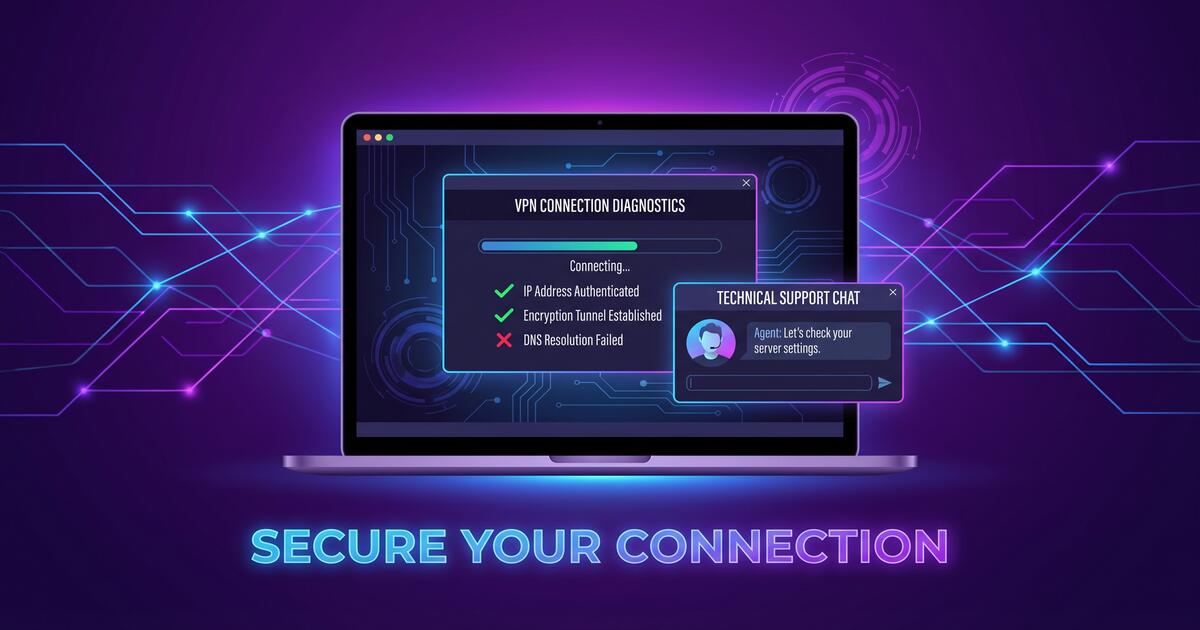
VPN connection issues can be frustrating, but the good news is that most problems have straightforward solutions. Whether your VPN won't connect, your speeds are slow, or your app keeps crashing, this comprehensive troubleshooting guide will walk you through step-by-step fixes to get you back online securely.
Why Do VPN Issues Happen?
Before jumping into fixes, it's important to understand why VPN problems occur. Common causes include:
- Server overload: Too many users on a single server can slow speeds and cause disconnections
- Internet connection problems: Weak WiFi or unstable broadband affects VPN performance
- Firewall interference: Your device's firewall or antivirus software may block VPN protocols
- Outdated app: Running an old version of Free VPN can cause compatibility issues
- Network configuration: Some routers don't properly route VPN traffic
- ISP blocking: Some internet providers actively block VPN connections in certain regions
- DNS misconfigurations: Domain Name System issues can prevent proper name resolution
Did You Know?
Most VPN issues are temporary and resolve with a simple restart. Try closing and reopening the app, or restarting your device, before attempting more complex fixes.
VPN Won't Connect: Troubleshooting Steps
If your VPN refuses to connect, follow these steps in order until the issue is resolved:
Step 1: Verify Your Internet Connection
Your VPN needs a working internet connection to function. Check that:
- Your WiFi or mobile data is connected and showing signal strength
- You can load websites in your browser (try visiting Google or your email)
- Your connection speed is reasonable (test at speedtest.net if possible)
Step 2: Restart Your VPN App
Completely close the Free VPN app—don't just minimize it. Then reopen it and try connecting. This clears temporary data and resets the connection attempt.
Step 3: Switch to a Different VPN Server
The server you're trying to connect to may be temporarily down or overloaded. Free VPN has 25+ servers worldwide. Try selecting a different server in the app settings:
- Open Free VPN and tap Settings
- Select "Server Location" or "VPN Server"
- Choose a different server (try one in a nearby country first)
- Attempt to connect again
Step 4: Update Your VPN App
Check that you're running the latest version of Free VPN. Outdated apps may have bugs or incompatibilities. Go to your device's app store (Google Play, Apple App Store, or Mac App Store) and install any available updates.
Step 5: Restart Your Device
A full device restart can resolve deeper issues with your operating system and network stack. Shut down your phone, tablet, or computer completely, wait 10 seconds, then power it back on.
Common Mistake
Don't give up after trying just one server. VPN servers can experience temporary issues. Always try 2-3 different servers before concluding the problem is with your setup.
VPN is Running Slowly: Speed Optimization
VPNs naturally add a slight overhead because your traffic must be encrypted and routed through our servers. However, excessive slowness indicates something needs fixing.
Check Your Baseline Speed
First, test your internet speed without the VPN connected. Open speedtest.net and note your download, upload, and ping speeds. VPN speeds are typically 10-30% slower than your baseline, but not drastically slower.
Choose a Closer VPN Server
Physical distance matters. Connecting to a VPN server closer to you reduces latency and increases speed:
- If you're in Europe, choose a European server
- If you're in Asia, choose an Asian server
- If you're in the Americas, choose an American server
Use a Faster VPN Protocol
Free VPN supports multiple protocols. In settings, try switching protocols if available:
- WireGuard: Fastest and most modern (recommended)
- IKEv2: Fast and stable, great for mobile
- OpenVPN: Secure and reliable but slightly slower
Reduce VPN App Network Usage
If other apps are consuming bandwidth in the background, turn them off. Streaming video, large file downloads, or background app refreshes will slow everything down. Try:
- Closing other apps completely
- Disabling auto-play on social media apps
- Pausing large downloads
- Disabling background app refresh in settings
Pro Tip: Speed Testing with VPN
When testing VPN speeds, use servers you plan to use regularly. Speed test results vary based on server load, time of day, and your ISP's peering relationships with that server location.
App Crashes, Errors & Disconnections
If Free VPN crashes frequently or disconnects unexpectedly, these fixes usually resolve the issue:
Clear App Cache (without losing data)
Cached data can become corrupted and cause crashes. Clear it without losing your settings:
- iPhone/iPad: Settings → General → iPhone Storage → Free VPN → Offload App (then reinstall)
- Android: Settings → Apps → Free VPN → Storage → Clear Cache (NOT Clear Data)
- macOS: Free VPN Preferences → Advanced → Clear Cache
Uninstall and Reinstall Free VPN
If clearing cache doesn't work, do a complete uninstall and reinstall. This removes all cached files and settings:
- Delete/uninstall Free VPN from your device
- Restart your device
- Download Free VPN fresh from the official app store
- Open the app and try connecting
Check for App Errors or Notifications
When the app crashes, note any error messages shown. Common errors include:
- "Connection Timeout": The server took too long to respond—try a different server
- "Permission Denied": Your system requires you to approve VPN access in settings
- "Protocol Not Supported": Your ISP or network blocks that VPN protocol—try a different one
Disable Split Tunneling Temporarily
If you've enabled split tunneling, temporarily disable it to check if that's causing crashes. Go to Settings and toggle off "Split Tunneling" or "Per-app VPN".
Server Location & Geo-Blocking Problems
Sometimes Free VPN connects, but you're not getting the server location you expected. Or you can't access geo-restricted content you should be able to access. Here's what to do:
Verify Your Server Location
After connecting to a VPN server, verify you're actually in the right location. Visit ipleak.net or whatismyipaddress.com to check your apparent location. It should match the server you selected.
Reconnect and Check Again
Sometimes the app shows you're connected but the location takes a moment to update. Disconnect, wait 5 seconds, then reconnect. Check your location again.
Clear Your Browser Cache
Some websites remember your original location even after you connect to a VPN. Clear your browser's cache and cookies, then try accessing the service again.
Disable Geolocation Services
Some apps use your device's GPS or geolocation services instead of your IP address. To bypass this:
- iPhone: Settings → Privacy → Location Services → Toggle off
- Android: Settings → Location → Toggle off
- Note: Some maps and weather apps may not work with geolocation disabled
DNS Leaks & IP Address Issues
DNS leaks are a serious privacy issue where websites can see your real location even though you're using a VPN. Free VPN includes DNS leak protection, but you should verify it's working:
Test for DNS Leaks
After connecting to Free VPN, visit dnsleaktest.com and run their DNS leak test. You should see Free VPN's DNS servers listed, not your ISP's servers.
Enable DNS Protection in Free VPN
Free VPN includes built-in DNS protection. Ensure it's enabled:
- Open Free VPN Settings
- Look for "DNS Protection" or "DNS Leak Protection"
- Toggle ON
- Reconnect to a VPN server
Check for IPv6 Leaks
Your IPv6 address can also leak your location. Test at dnsleaktest.com and look for IPv6 addresses. If you see your real IPv6 address, disable IPv6:
- iPhone: Not user-configurable; Free VPN handles this automatically
- Android: Developer Options → Search for IPv6 → Disable if available
- macOS: System Preferences → Network → Advanced → TCP/IP → Configure IPv6 → Off
Device-Specific Troubleshooting
iOS (iPhone & iPad)
Common iOS VPN issues and fixes:
- App won't open: Force-close the app by swiping up from the bottom, then reopen
- VPN won't activate: Check Settings → VPN & Device Management → Free VPN → Accept VPN Profile
- Slow speeds: Try Settings → General → VPN & Device Management → Remove Free VPN profile, then reinstall the app
Android
Common Android VPN issues and fixes:
- Constant disconnections: Check Settings → Battery → Battery Optimization → Remove Free VPN from restricted apps
- Can't connect: Go to Settings → Apps → Permissions → ensure Free VPN has permission to access network
- App freezing: Clear app data: Settings → Apps → Free VPN → Storage → Clear Data
macOS
Common macOS VPN issues and fixes:
- VPN won't connect: Check System Preferences → Security & Privacy → Firewall → Firewall Options → Allow Free VPN through
- Slow internet: Restart your Mac and ensure Free VPN is the latest version
- Frequent disconnects: Go to Free VPN preferences → Advanced → Enable "Keep Alive"
macOS: Allow VPN Through Firewall
If your Mac has a firewall enabled (usually third-party like Little Snitch or Glasswire), you must explicitly allow Free VPN through. Check your firewall app's settings and add Free VPN to the allowed apps list.
When to Contact Support
If you've tried all the troubleshooting steps above and still have issues, it's time to contact Free VPN support. Here's how to get help efficiently:
Gather Information
Before reaching out, collect this information:
- Your device model and operating system version
- Free VPN app version (check in app settings)
- The specific error message you're seeing (take a screenshot)
- Which servers you've tried
- When the problem started (was it after an app update?)
- Your approximate location or country
Contact Free VPN Support
Reach out to support@freevpnapp.org with detailed information. Include:
- A clear description of your problem
- The troubleshooting steps you've already tried
- Screenshots of error messages
- Device and app version information
Pro Tip: Support Response Time
Free VPN support typically responds within 24 hours. Be detailed in your initial message to avoid back-and-forth clarifications. The more information you provide, the faster we can resolve your issue.
Key Takeaways
- VPN issues usually stem from server overload, internet connection problems, or app configuration errors
- Always restart your device and switch VPN servers before troubleshooting complex issues
- Check your internet connection speed independently to confirm it's not the problem
- Update your VPN app and operating system to the latest versions for best performance
- Clear app cache and data, then reinstall if the app crashes repeatedly
- Use VPN connection testing tools to detect DNS leaks and IP address vulnerabilities
- Disable VPN temporarily on specific apps using split tunneling if needed
- Contact VPN support with detailed error messages and device information for persistent problems
Stay Connected Securely
VPN troubleshooting doesn't have to be complicated. By following this guide's step-by-step approach, you'll resolve 99% of connection, speed, and app issues. Remember: most problems resolve with simple fixes like restarting your device, switching servers, or updating your app.
Free VPN is designed to be reliable and fast. If you encounter persistent issues despite following this guide, don't hesitate to reach out to support. We're committed to keeping you securely and speedily connected to the internet, no matter where you are in the world.