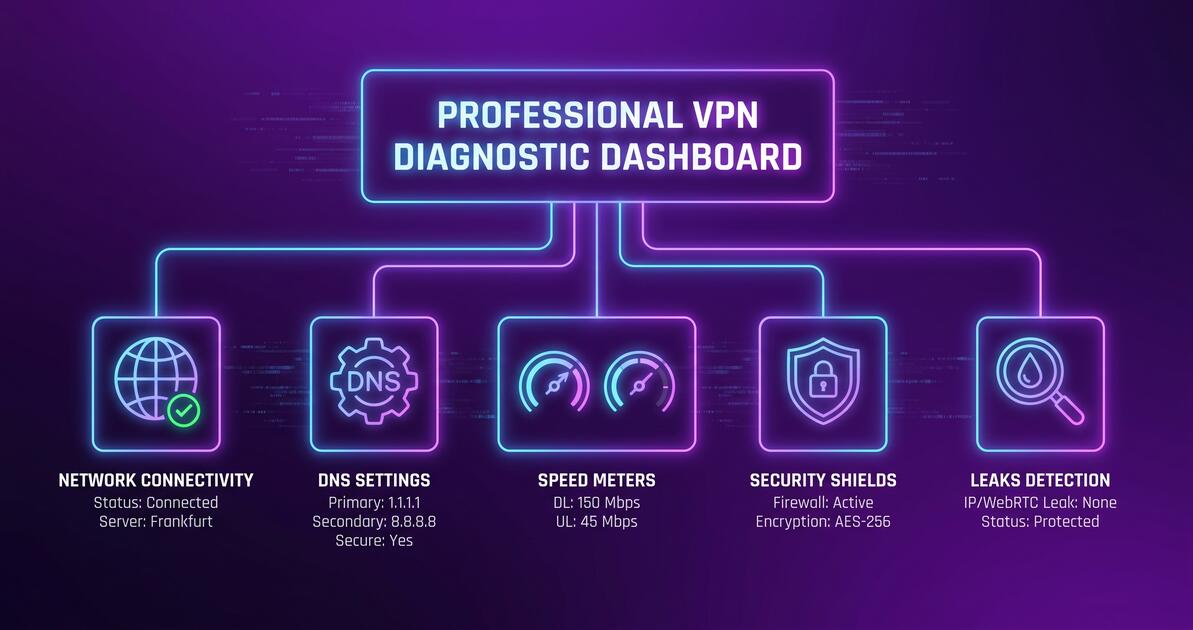
Your VPN isn't working the way it should. Maybe it keeps disconnecting, or your speeds have tanked. Perhaps Netflix won't load, or you're worried about DNS leaks. Whatever your VPN problem is, you've come to the right place. This comprehensive guide covers every common VPN issue, how to diagnose it, and exactly how to fix it—so you can get back to secure, private browsing.
Quick Diagnostic Flowchart
Before diving into detailed troubleshooting, let's narrow down your problem:
- VPN won't open at all? Jump to "VPN Won't Connect" section
- VPN connects but then disconnects? See "Connection Drops Frequently"
- VPN is slow or buffering? Check "Experiencing Slow Speeds Over VPN"
- Worried about leaks? Go to "Testing for DNS & IP Leaks"
- Netflix or other service blocked? See "Streaming Services Blocked"
- Issues on mobile (iPhone/Android)? Check "Mobile-Specific Issues"
Start Here: The Universal Fix
70% of VPN issues are resolved with these three simple steps: (1) Restart the Free VPN app, (2) Switch to a different server, and (3) Toggle the kill switch off and back on. Try these first before diving into deeper troubleshooting.
VPN Won't Connect or Opens Unexpectedly
If your VPN app won't open at all or crashes immediately, you're not alone. This is one of the most common issues and usually has a quick fix.
Step 1: Restart the App
Close the Free VPN app completely (including background processes) and restart it. On mobile, swipe up from app switcher to force-close. On desktop, make sure the process is fully terminated before relaunching.
Step 2: Clear App Cache
On Android: Settings → Apps → Free VPN → Storage → Clear Cache. On iOS: Go to Settings → General → iPhone Storage → Free VPN → Offload App, then reinstall. On Desktop: Delete temporary files in your app data folder (usually in AppData or Library).
Step 3: Check for App Updates
An outdated version of Free VPN might have bugs. Check your app store for the latest version and update immediately. Developers frequently patch connection issues in new releases.
Step 4: Reinstall the App
If the above steps don't work, uninstall Free VPN completely and reinstall it from the official source. This ensures you have a clean installation without corrupted files.
Verify Your Download Source
Always download Free VPN from official sources: Google Play Store (Android), Apple App Store (iOS), or freevpnapp.org (desktop). Using unofficial sources can result in malware or non-functional builds.
VPN Connection Drops Frequently
A stable VPN connection is essential. If your VPN keeps disconnecting, your data exposure increases every time the connection drops. Let's stabilize it.
Cause #1: Poor Internet Connection
Your VPN connection depends entirely on your base internet connection. If your WiFi is weak or your broadband is unstable, your VPN will suffer. Test your internet speed at speedtest.net (without VPN). If speeds fluctuate wildly or disconnect frequently, contact your ISP.
Cause #2: Server Overload
Free VPN maintains multiple servers globally. If you're connected to an overloaded server, it may drop connections to manage traffic. Solution: Switch to a different server—preferably one geographically closer to your location, or one with lower load shown in the app.
Cause #3: Kill Switch Sensitivity
Free VPN's kill switch can sometimes be overly sensitive, disconnecting if any minor network hiccup occurs. Try toggling kill switch off temporarily to see if that stabilizes your connection. If it does, you know the issue is your kill switch setting.
Cause #4: Protocol Incompatibility
Different VPN protocols (OpenVPN, WireGuard, IKEv2) behave differently on different networks. If you're experiencing drops, try switching protocols. Go to Settings → Protocol and test each option for 10 minutes.
Cause #5: Device Sleep Mode
On mobile, your phone might suspend the VPN app when the screen is off to save battery. Enable "Always On" mode in Free VPN settings to prevent disconnection during sleep.
Experiencing Slow Speeds Over VPN
All VPNs add some latency and reduce bandwidth slightly. But Free VPN shouldn't make your internet crawl. If you're seeing severe speed drops, here's how to diagnose and fix it.
Step 1: Measure Your Baseline Speed
Visit speedtest.net with your VPN DISCONNECTED and note your speeds (download, upload, ping). Now enable Free VPN and test again on the same server. A 10-20% speed reduction is normal. If you're losing 50%+ speed, something is wrong.
Step 2: Switch VPN Servers
Server distance directly impacts speed. If you're connected to a server on another continent, try connecting to one closer to your physical location. Free VPN shows server load—choose a green (low-load) server for best speeds.
Step 3: Try a Different Protocol
WireGuard is typically faster than OpenVPN. If you're on OpenVPN and experiencing slowness, try WireGuard. IKEv2 is good for mobile stability. Test each protocol to see which performs best on your connection.
Step 4: Disable Additional Features
If you have ad-blocking or super-encryption enabled, these can add overhead. Try disabling them temporarily to see if speed improves. You can enable them back once you've identified the culprit.
Step 5: Check Your Device Performance
Background apps consume bandwidth and CPU. Close unnecessary applications, restart your device, and test again. A device with limited resources (old phones, low RAM) may struggle with VPN encryption.
Expected Speed Impact
Premium VPN services typically reduce your speed by 10-30% depending on server load and distance. Free VPN is optimized for minimal overhead. If you're experiencing larger drops, it's usually a server choice or protocol issue, not a fundamental VPN limitation.
Testing for DNS & IP Leaks
A "leak" happens when your real IP address or DNS queries are exposed despite having VPN enabled. This defeats the purpose of using a VPN. Here's how to test for and fix leaks.
Test 1: IP Address Leak
Visit whatismyipaddress.com with your VPN disconnected. Note your real IP address. Now enable Free VPN and refresh the page. You should see a different IP address (belonging to the VPN server). If you still see your real IP, you have an IP leak.
Test 2: DNS Leak
Visit dnsleaktest.com. Click "Standard Test." The DNS servers shown should belong to Free VPN or your VPN provider, NOT your ISP. If you see your ISP's DNS servers, you have a DNS leak.
Test 3: WebRTC Leak
Visit webrtcleaktest.com. If your real IP address appears in the "Your IP:" section, you have a WebRTC leak. This is rare on desktop but more common on mobile.
Fixing Leaks
DNS Leak Fix: In Free VPN settings, ensure "Use VPN DNS" is enabled. This forces all DNS requests through the VPN tunnel. WebRTC Leak Fix: On mobile, ensure background app refresh is disabled. On desktop, disable WebRTC in your browser if possible. IPv6 Leak Fix: Most modern VPNs handle IPv6 automatically, but if you're experiencing leaks, disable IPv6 in your OS network settings.
Streaming Services Blocked or Buffering
Netflix, Hulu, Disney+, and other services actively block VPN traffic. If you can't access streaming services while connected to Free VPN, you need specific servers or obfuscation settings.
Why Streaming Services Block VPNs
Streaming platforms like Netflix use licensing agreements that restrict content to specific geographic regions. VPNs bypass these restrictions, so platforms block VPN IPs to enforce licensing. It's not a VPN weakness—it's an intentional business practice by these services.
Solution 1: Use Obfuscation Mode
Free VPN's obfuscation mode masks VPN traffic to look like regular internet traffic, making it harder for streaming services to detect and block. Enable this in Settings → Advanced → Obfuscation.
Solution 2: Switch Servers
Streaming services block specific VPN IP addresses. If one server is blocked, try another. Free VPN rotates IPs regularly, so switching to a different server often restores access.
Solution 3: Clear App Cache & Cookies
Sometimes streaming services cache your location. Clear your browser cookies and cache, or use an incognito/private browsing mode to start fresh.
Solution 4: Check Your Subscription
Some streaming services require local payment methods or have limited VPN support. Verify your subscription is valid and your account region matches the content you're trying to access.
Mobile-Specific Issues (iOS & Android)
Mobile devices have unique constraints. If you're experiencing problems on iPhone or Android, try these mobile-specific fixes.
iOS-Specific Issues
Battery Drain: VPN on iOS is more power-hungry than on other platforms. This is a limitation of iOS architecture. To minimize battery impact, disable "Always On" when not needed and use WiFi instead of cellular. Background App Refresh: iOS might suspend Free VPN when your phone's screen is off. Go to Settings → Free VPN → Background App Refresh and enable it. Slow Connections: iOS's network stack can sometimes conflict with VPN. Try toggling WiFi off and on, or switching between WiFi and cellular to reset the network connection.
Android-Specific Issues
Battery Optimization: Android might aggressively suspend Free VPN to save battery. Go to Settings → Battery → Battery Optimization → Free VPN and select "Don't optimize." Split Tunneling Issues: If you're using split tunneling and apps aren't connecting, ensure the correct apps are included in your VPN tunnel. Connectivity Issues: Some Android devices (particularly older ones) struggle with VPN connections. Try disabling IPv6 in your device's VPN settings.
Both Platforms
Restart the Device: A simple restart often resolves connectivity issues. Reinstall the App: Uninstall Free VPN completely and reinstall from your app store. Update Your OS: Ensure your iOS or Android version is current. Outdated OS versions may have VPN compatibility issues.
Router & Smart Device Connection Problems
If you're trying to use a VPN on your router (to protect all connected devices) or on smart home devices, you'll need specialized configuration.
Setting Up VPN on Your Router
Most home routers support VPN, but setup varies by model. Access your router's admin panel (usually 192.168.1.1) and look for VPN settings. You'll need to enter Free VPN's server address, your credentials, and choose a protocol. Consult your router's manual for specific steps—router VPN setup is beyond the scope of Free VPN's app configuration.
DNS Configuration for Smart Devices
Smart home devices (Alexa, Google Home, smart TVs) often can't run VPN apps directly. Instead, you can protect them by configuring your router's DNS settings to use Free VPN's DNS servers. This encrypts DNS queries from all devices. Check Free VPN's documentation for recommended DNS server addresses.
Troubleshooting Router VPN Issues
Connection Fails: Verify you've entered the correct server address, username, and password. DNS Not Resolving: Ensure your router's DNS is set correctly in the VPN settings. Devices Can't Connect: Some routers have limited VPN bandwidth. Restart the router and reduce the number of simultaneously connected devices.
Advanced Fixes & When to Contact Support
If you've tried everything above and your VPN still isn't working, try these advanced troubleshooting steps or contact Free VPN support.
Advanced Diagnostic Steps
- Check Firewall Rules: Your computer's firewall might block Free VPN. Add Free VPN to your firewall's whitelist (Windows Defender, macOS Security, etc.)
- Disable VPN Extensions: Browser VPN extensions can conflict with the Free VPN app. Disable any VPN browser extensions temporarily.
- Test with Different ISP: Use a mobile hotspot from a different provider. If Free VPN works, your ISP might be blocking the VPN protocol.
- Review Antivirus Software: Some antivirus programs interfere with VPN. Try temporarily disabling antivirus to test. If VPN works, whitelist Free VPN in your antivirus.
- Reset Network Settings: On mobile, go to Settings → Reset Network Settings. This clears all saved WiFi passwords and network configurations, which can fix connectivity issues.
When to Contact Support
If none of the above steps resolve your issue, it's time to reach out. Free VPN's support team can help with:
- Account-related issues (subscription, payment, activation)
- Server connection failures affecting all servers
- App crashes or bugs specific to your device
- Complex network environment issues (corporate networks, restricted ISPs)
- Advanced protocol or encryption configuration
When contacting support, provide:
- Your device type and OS version
- Free VPN app version (found in Settings → About)
- Your VPN protocol and server choice
- Speed test results (with and without VPN)
- A screenshot of the error message (if applicable)
Prevention Checklist & Best Practices
The best troubleshooting is prevention. Follow these best practices to keep your VPN running smoothly.
Daily/Weekly Practices
- Keep Free VPN Updated: Enable automatic app updates in your app store. New versions fix bugs and improve performance.
- Test Connection Regularly: Once a week, verify your VPN is working by checking your IP address at whatismyipaddress.com while connected.
- Monitor Performance: Notice if speeds seem slower than usual. This often signals a server overload—switch servers.
- Check for DNS Leaks: Monthly, run a DNS leak test at dnsleaktest.com to ensure your privacy.
Monthly/Quarterly Practices
- Clear App Cache: Accumulated data can slow performance. Clear cache monthly on mobile.
- Review Active Connections: Check which apps are accessing the VPN. Disable VPN for apps that don't need it.
- Update Your Device OS: Quarterly, ensure your device operating system (iOS, Android, Windows, macOS) is fully updated.
- Test Different Protocols: Every few months, switch your VPN protocol to verify all protocols are working correctly.
Optimal VPN Settings for Most Users
- Protocol: WireGuard (fastest) or IKEv2 (mobile stability)
- Kill Switch: Enabled (prevents data leaks if VPN disconnects)
- Server Choice: Closest geographically to your location, or lowest load shown in app
- DNS Protection: Enabled (prevents DNS leaks)
- Auto-Connect: Enabled on mobile to reconnect if VPN drops
Key Takeaways
- Most VPN issues are solved by restarting the app, switching servers, or toggling kill switch settings
- Slow speeds typically result from server distance or protocol choice—try different servers and protocols
- DNS leaks and IP leaks expose your location; use dnsleaktest.com and ipv6leak.com to verify protection
- Streaming services block VPNs; switch to obfuscation mode or try different servers if blocked
- Mobile issues often stem from background app restrictions or outdated OS; ensure app is updated
- Router VPN routing requires manual configuration; use your router admin panel to troubleshoot DNS settings
- Basic fixes: restart, switch servers, toggle kill switch, update app, clear cache, restart device
- Keep your app updated, use recommended protocols for your device, and test regularly for leaks
Conclusion: Stay Connected & Protected
VPN troubleshooting doesn't have to be complicated. Start with the universal fixes (restart, switch servers, toggle kill switch), then work through the specific sections that match your problem. Most issues resolve within minutes using the steps outlined in this guide.
The key is to be systematic: diagnose the problem (using our flowchart), test potential solutions one at a time, and verify each fix works. And remember—prevention is easier than troubleshooting. Keep Free VPN updated, test regularly for leaks, and monitor your connection speed to catch issues before they become frustrating.
If you've tried everything and still need help, Free VPN's support team is ready to assist. Because at the end of the day, a VPN should protect your privacy without adding friction to your life. You deserve a VPN that just works.