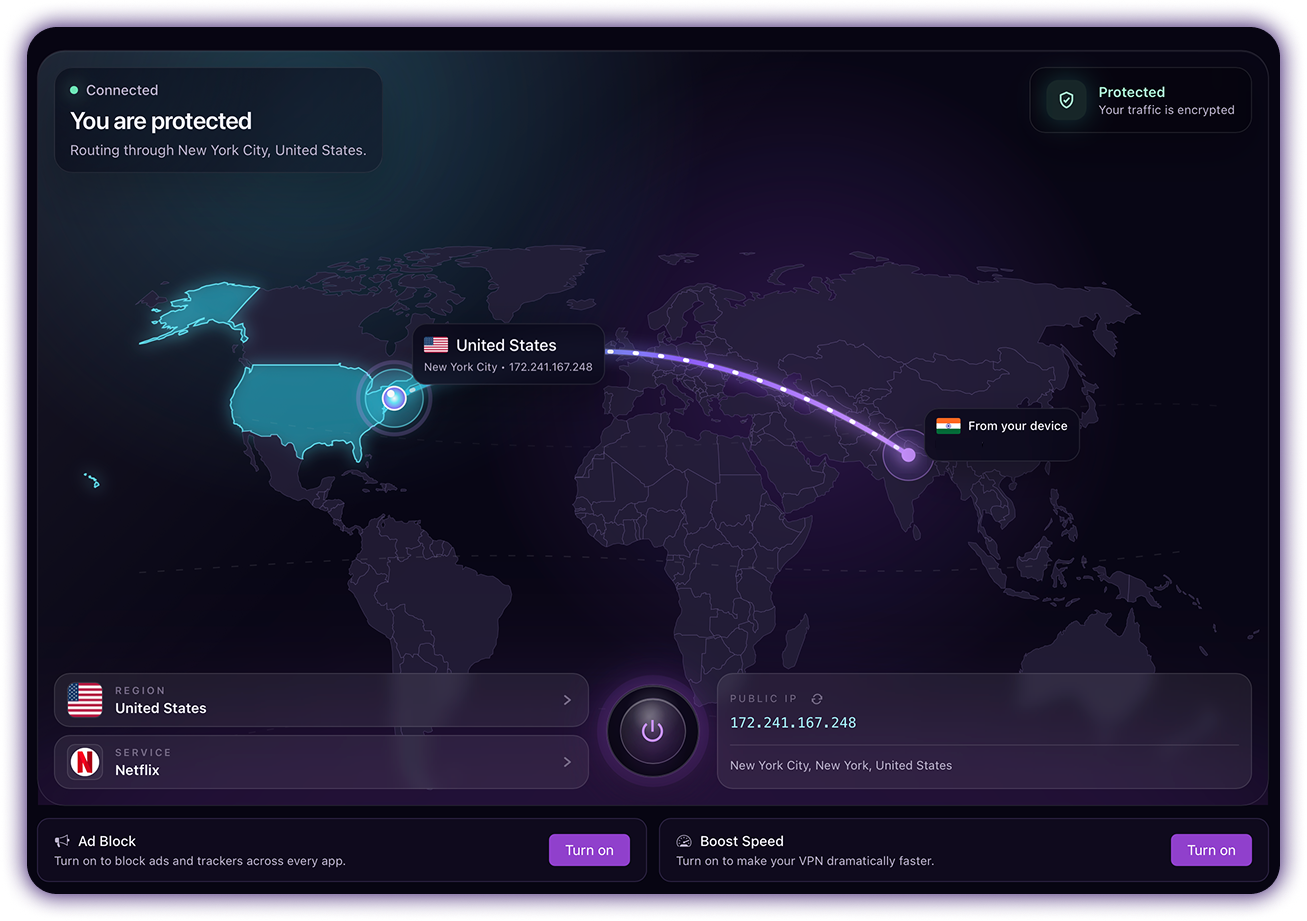
Pick the Windows route that suits you
Our Windows page supports Windows 10 and Windows 11. The desktop documentation lists Windows 10's October 2018 update or later as a software requirement. Compatibility with the client is separate from whether your Windows edition receives current security updates; keep your operating system supported and patched.
If you prefer a familiar setup flow, use the installer linked from the official page. If you work in PowerShell, use the command published there after reviewing the installation instructions. Both routes are meant to reach the same Windows product; a generic manual VPN profile is not required for the app route.
| Route | Best fit | What to expect |
|---|---|---|
| Windows installer | You want a normal desktop setup. | Download from our Windows page, run it and review the Windows administrator prompt. |
| Documented PowerShell installer | You prefer the supported scripted route. | Review the official command; setup installs the VPN service and requires appropriate system approval. |
| CLI with companion window | You want terminal commands and everyday visual controls. | Follow our CLI documentation and add the GUI if needed. |
Use Downloads to reach the current route. Avoid a mirror simply because its filename looks similar. The download verification guide explains the official-source and checksum checks.
Install without guessing at network settings
- Open our Windows page and choose its official installer or PowerShell instructions.
- Review the package or script source before running it. Use the Windows approval flow expected for installing a network service; do not bypass an unexpected security warning.
- Finish setup and open Free VPN. If you intentionally installed only the CLI, follow its documentation for the companion window.
- Choose the free access route to start without a purchase. Leave the initial region and service choices at Fastest and General.
- Connect and wait for the status to change. Open a familiar HTTPS page, then disconnect and confirm ordinary connectivity returns.
On a company-managed computer, confirm that a personal VPN is allowed. Free VPN is not a replacement for a required work VPN or an administrator's network policy.
The desktop window and terminal share a service
The CLI documentation describes a background service and an optional companion interface. That means you can use the desktop controls for routine connections and the terminal when you want reported state or diagnostics.
freevpn status
freevpn doctor
status reports the current connection, exit and related state. doctor checks areas such as DNS, routes, controller, license and egress. Read the output for the specific failure instead of assuming that any connection error needs a reinstall.
For the CLI installation route, the documented companion commands are:
freevpn gui install
freevpn gui
Install the window only if you need it. Our CLI page is the reference for the installed version's current options.
Get to know Regions, Services, Boost Speed and Ad Block
Regions lets you choose a VPN location—for example, US East, Germany, Japan or Turkey—while Fastest starts with automatic routing. A closer-looking region is not always a faster path; compare the task you actually use before deciding.
Services offers activity routes for streaming, live TV, gaming, social, music, sports and AI. Choose the activity or service rather than guessing at several settings at once. A preset does not supply an account or override another service's access rules.
Boost Speed is an optional connection optimization. Its effect depends on your route, network and task. Ad Block filters known ad and tracker requests while enabled and connected. If a page breaks after enabling filtering, isolate that change before replacing the region or reinstalling the app.
On Windows, premium includes Boost Speed, Ad Block and premium service presets. The free plan uses Fastest and General. See our Windows page for the access options.
Need another region or service? Ask us
Our network offers thousands of servers and hundreds of services. If you cannot find the service or location you need, send the Free VPN team a request with its name, your desired region and your Windows version. We work on adding requested services and regions on demand. You do not need a Free VPN account to use the VPN; contacting support is optional and separate.
Know the Windows free-session model
The Windows free plan provides a session of 30 minutes, followed by a 3-minute break, using Fastest region and General mode. Premium is described as providing unlimited VPN time and additional controls. Check the current Windows terms and app before starting a session or purchase.
On mobile, watch ads to earn free VPN time. For longer uninterrupted Windows sessions, explore the premium option in the app.
Troubleshoot one symptom at a time
If the app cannot connect, first check that Windows has an ordinary internet connection. Record the error and use freevpn status and freevpn doctor when the CLI route is available. Check whether another VPN is active or the device is managed before changing network settings.
If one website fails but others work, the problem may be specific to that site, its account rules or an enabled filter. Compare one setting at a time. Do not disable the firewall broadly or ignore certificate warnings as a shortcut.
For support, send the Windows version, Free VPN version, installation route and exact symptom through our contact page. Review diagnostic output before sharing it; public IPs and local machine details may not be needed. See our privacy guide for what a working tunnel does and does not establish.
Free VPN at a glance
NO LOGS. NO LOGINS. We do not log your browsing activity. No Free VPN account, login or email registration is needed to use the VPN.
- Simple setup: Install Free VPN, approve the VPN profile or system connection permission, and connect. Desktop clients follow their supported installer and service setup.
- Free VPN time: Watch ads to get VPN time in our mobile apps. Free access is real; a paid upgrade is optional if you prefer not to watch ads. Desktop clients have their own published access terms.
- Built-in controls: Auto-connect, Boost Speed, System-wide Ad Block. System-wide Ad Block filters known ad and tracker requests across apps while enabled and connected, rather than only inside one browser.
- Our network: Thousands of servers. Hundreds of services across AI, social, streaming, live TV, gaming, music, sports and more. Open Regions and Services in the app, choose what you want to use and connect.
- On-demand requests: Missing a service or region? Tell our team what you need and we will work on adding it on demand. Request a service or region.
- Your devices: Android, iPhone / iPad, Mac, Windows, Linux and CLI.
Read our privacy policy for no-logs and advertising details. Watch ads to earn mobile VPN time, or choose an optional paid upgrade if you prefer not to watch ads.
Windows setup questions
Do I need to create a Free VPN account on Windows?
No. The free plan starts without a Free VPN signup or card. Optional premium purchases have separate billing terms.
Do I need Windows' manual VPN profile settings?
The app's supported installation route uses the Free VPN client and service. Use the official installer and its setup instructions; no manual server credentials are needed.
Are Boost Speed and Ad Block included in the Windows free plan?
Our Windows page lists those controls in the premium offering. Check the current app and plan details before purchasing; the free offering is described separately with Fastest and General.
Is the 30-minute session rule the same on every device?
No. This is the Windows free-session model. Mobile access and other platform plans have their own terms and screens.