Start with your game and network
A game feels good when it responds consistently. Download speed is only part of that experience: ping, variation between readings, packet loss and sudden disconnects can matter more during a match. The useful question is whether Free VPN makes your particular route usable and stable for the task you need.
Start by identifying the problem. Are you checking connection privacy on a shared network? Does your usual game stall on one network? Are you using a supported service route? These are different reasons to try a VPN. Changing location simply because another country looks appealing is not a plan for lower ping.
A VPN also does not change the game's rules. Your account, matchmaking region and the game's policy remain its own. Do not assume that an available VPN route gives permission to bypass restrictions or manipulate matchmaking.
Use the app's two route controls
Regions selects an available VPN exit. Services selects an activity or supported service route. The app’s Gaming category includes PUBG Mobile, alongside games such as Roblox, Brawl Stars and Minecraft. These services are available inside Free VPN. Open Services, choose the game or service, select your region and connect.
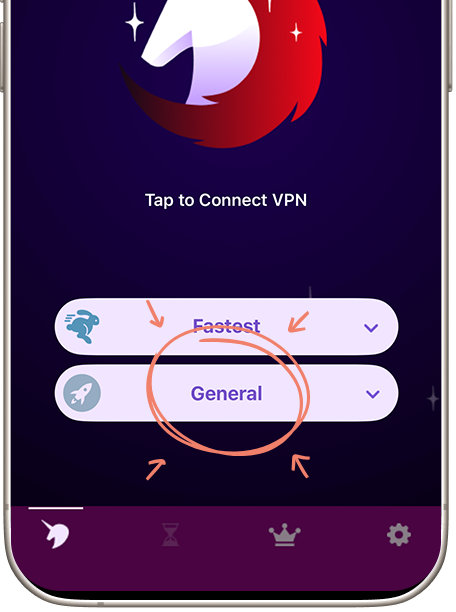
Begin with Fastest and General, then try the Gaming or relevant service option in Services. Keep the game server fixed while comparing. Regions includes US East, Germany, Japan, South Africa and Turkey. To compare a different VPN region, leave the game server and service setting unchanged so you can understand the effect of that one adjustment.
Our Services screen shows where to open the activity selector. Use it to choose Gaming or your game’s service.
Set up before joining a match
- Install through official Downloads and try a connection outside a competitive session. No Free VPN account or payment details are required to start the free tier.
- Read the mobile free-access screen. Ad-supported access can have a displayed time allowance; make sure it suits the session you intend to play.
- Connect and wait for the active state. Open the game and confirm that you are using the same game server for each comparison.
- Note any app exclusions. If Android's Filter Apps bypasses the game, that game is using the direct route rather than the VPN.
- Try one setting at a time and keep the better working configuration for your own connection.
If you need uninterrupted access, review the optional premium plan on that device.
A fair test you can actually repeat
Use the same device, physical location, network and game-server region. Compare a normal connection with a VPN connection in comparable conditions. Avoid running an OS update or video download in the background during one test but not the other.
| Observation | Record it this way | Why it helps |
|---|---|---|
| Ping | Three readings from each comparable session. | A middle value is less sensitive to one unusual spike. |
| Consistency | Note spikes, jitter or irregular responses the game reports. | An acceptable average can still hide uncomfortable variation. |
| Reliability | Count disconnects and failed joins over similar sessions. | Stability is part of whether the route is useful. |
| Context | Network, game server, region and service setting. | You can reproduce or explain the result later. |
The worksheet on this page compares the median of your three normal-connection readings with the median of your three VPN readings. It calculates your results locally without running a speed test or sending your readings anywhere. Keep notes about stability alongside the number; lower ping in one short test is not proof of long-term improvement.
Where Boost Speed and Ad Block fit
The Android app includes Boost Speed, Adblock and Filter Apps. Use these controls to adjust the connection and choose which apps use the VPN. Boost Speed is an optional optimization to compare on your network, not a guaranteed gaming improvement. Repeat the same test if you try it.
Ad Block filters known advertising and tracker requests when enabled and connected. It does not make in-game latency disappear or remove every ad embedded in game content. If a game's login or content fails after a filtering change, isolate that setting first.
Filter Apps is particularly important for interpreting results: a game set to bypass the VPN will not test the tunnel you think you are testing. See the Android guide for that distinction.
Make a request when your game is missing
The existing Gaming directory is a starting point, not the limit of what you can ask for. If your game or required region is missing, raise a request with Free VPN. Include the game, your phone platform, the game-server region and the connection problem. Our team works on adding requested services and regions on demand.
Choose the settings that work for you
Compare ping, stability and your privacy needs together. Save the settings that work best for your game and network, and check again when either changes.
If Free VPN cannot establish a connection, check ordinary network access first. Try an available default route before adding more changes. For persistent issues, send support your platform, app version, service setting and symptom, without sharing game passwords or account recovery details.
For hotel or café play, the public Wi-Fi guide explains sign-in portals and connection checks. The privacy guide explains connection encryption, Ad Block and account privacy.
Free VPN at a glance
NO LOGS. NO LOGINS. We do not log your browsing activity. No Free VPN account, login or email registration is needed to use the VPN.
- Simple setup: Install Free VPN, approve the VPN profile or system connection permission, and connect. Desktop clients follow their supported installer and service setup.
- Free VPN time: Watch ads to get VPN time in our mobile apps. Free access is real; a paid upgrade is optional if you prefer not to watch ads. Desktop clients have their own published access terms.
- Built-in controls: Auto-connect, Boost Speed, System-wide Ad Block. System-wide Ad Block filters known ad and tracker requests across apps while enabled and connected, rather than only inside one browser.
- Our network: Thousands of servers. Hundreds of services across AI, social, streaming, live TV, gaming, music, sports and more. Open Regions and Services in the app, choose what you want to use and connect.
- On-demand requests: Missing a service or region? Tell our team what you need and we will work on adding it on demand. Request a service or region.
- Your devices: Android, iPhone / iPad, Mac, Windows, Linux and CLI.
Read our privacy policy for no-logs and advertising details. Watch ads to earn mobile VPN time, or choose an optional paid upgrade if you prefer not to watch ads.
Compare your own ping readings
Use the same phone, network, game server and comparable sessions. Nothing is prefilled or measured automatically.
Arithmetic runs on this page. No server is contacted and no values are saved. Stability, packet loss and unfair conditions need your own observations.
Mobile gaming questions
Does Free VPN guarantee lower ping?
No. It changes the route, which may help or add latency depending on the network and server. Compare your own ping, consistency and disconnects on the same game server.
Which Free VPN setting should I try first?
Start with Fastest and General. Then choose Gaming or your game’s service in Services, keeping the game server unchanged for the comparison.
Will the worksheet test my connection?
No. It calculates medians from the six readings you enter. It contacts no server, stores nothing and cannot measure packet loss, long-term stability or a game's performance itself.
What if my game is in Filter Apps?
If you set it to bypass the VPN, it uses the direct connection. Review that choice before comparing VPN performance or assuming the game shares the tunnel.